
What to Check Before Approving Your Final Logo Design. You have spent days or weeks working with a designer, reviewing concepts, and picking colors. Now, the designer sends over the final proof and asks for your official approval. You might feel excited and want to say yes right away so you can start using your new logo.
However, approving your final logo design is a serious step. Once you give your final approval and release payment, the design phase ends. If you spot a typo, missing file format, or bad color match later, fixing it can cost extra money and delay your business plans.
Before you give your designer the green light, you need to conduct a thorough quality check. This guide provides a step by step checklist of everything you must inspect, from spelling and letter spacing to file formats and legal ownership.
If you are beginning a branding project and want to ensure you get professional results from start to finish, exploring the logo design services at Innovative Logo is a great way to start.
Why the Final Logo Approval Stage Is Critical
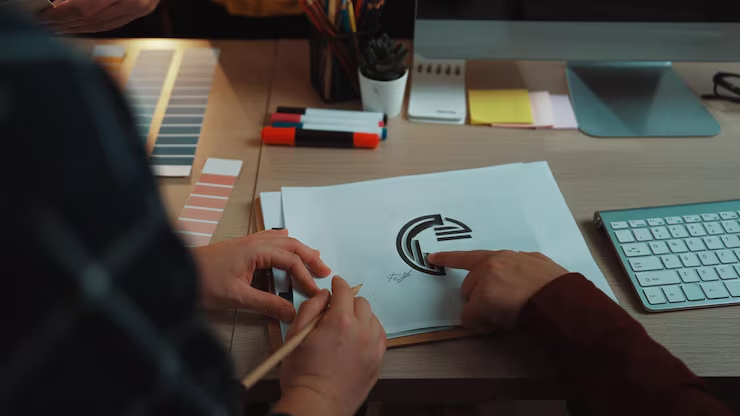
A logo is the foundation of your company identity. It will appear on your website, social media, storefront signs, product boxes, uniforms, and vehicle wraps.
If you approve a file with tiny mistakes, those mistakes will spread across all your printed materials and digital platforms. Fixing a mistake after printing five thousand business cards or wrapping a commercial van is expensive.
Taking thirty minutes to carefully review your final proof protects your budget and ensures your brand looks polished.
When you invest in a custom logo design, you deserve a complete, error free asset package that works everywhere.
1. Verify Spelling, Grammar, and Typography Details
It may sound obvious, but simple spelling and layout errors happen often in design projects. Designers focus heavily on shapes, colors, and visual balance, which means text errors can slip through unnoticed.
Double Checking Brand Name and Tagline Spelling
Look closely at every single letter in your company name and tagline.
- Check for swapped letters, missing letters, or accidental typos.
- Confirm correct capitalization. Is your name supposed to be all uppercase, all lowercase, or title case?
- Check punctuation marks, apostrophes, and accents to make sure they are placed correctly.
- Have at least two other people read the text out loud to make sure nothing was missed.
Inspecting Kerning, Letter Spacing, and Font Alignment
Kerning refers to the space between individual letters. In good typography, the space between letters looks even and comfortable.
- Check for awkward gaps between letters, especially around tricky letters like T, V, W, and Y.
- Check that the tagline is centered or aligned properly with the main business name.
- Make sure the font weight is consistent and that thin letters are not too faint to read.
Professional design principles from the American Institute of Graphic Arts (AIGA) explain how proper letter spacing and typographic balance create legible, trustworthy corporate communications.
2. Test Scalability and Legibility Across Sizes
Your logo must look clear whether it is tiny on a phone screen or huge on an outdoor banner.
The Micro Scale Test (Favicons and Mobile Screens)
When a logo shrinks, small details can blend together and become blurry.
- Shrink your logo proof down to the size of a postage stamp on your screen.
- Check if the business name is still easy to read.
- Check if thin lines or small decorative details blur together into a dark smudge.
- If your logo has a long name or tagline, check if your designer included a simplified icon or sub mark for small spaces.
User experience guidelines from the Nielsen Norman Group show that simple, clean visual marks improve user recognition on small digital displays.
The Large Scale Test (Signage and Billboards)
A logo that looks fine on a computer screen might reveal rough edges or uneven shapes when enlarged.
- Zoom in on the vector file to 500 percent or higher.
- Check the curves and corners of the shapes. Are the lines smooth, or do you see accidental bumps and jagged edges?
- Make sure shapes overlap cleanly without unwanted gaps or stray vector points.
To see examples of logos built to scale cleanly from tiny icons to large signage, browse through the portfolio at Innovative Logo.
3. Evaluate Color Accuracy Across Digital and Print Systems
Colors look different on glowing digital screens than they do on physical paper. You must verify that your designer provided the correct color codes for both worlds.
Reviewing RGB, CMYK, HEX, and Pantone Codes
A complete logo delivery must include exact color formulas for different uses:
- HEX Codes: Six digit codes used by web developers for websites and apps.
- RGB Values: Red, Green, and Blue light values for digital monitors, social media graphics, and digital presentations.
- CMYK Percentages: Cyan, Magenta, Yellow, and Black values used by commercial printers for paper, flyers, and packaging.
- Pantone (PMS) Swatches: Standardized spot color formulas from the Pantone Color System that guarantee exact color matching across different print shops.
Make sure your design package includes a reference sheet listing all four color codes for every color in your logo.
Checking Contrast and Background Visibility
Your logo will not always sit on a clean white background.
- Test your logo against pure black and dark gray surfaces.
- Check if dark elements in your logo disappear against dark backgrounds.
- Confirm that your designer provided a solid white knockout version for dark photos and dark mode website layouts.
- Test your colors against the accessibility standards from the World Wide Web Consortium (W3C) to ensure adequate visual contrast for all viewers.
4. Confirm Layout Variations and Responsive Lockups
A single logo layout cannot fit every marketing space. A complete brand identity package must provide flexible layout options.
Before signing off, confirm that your package includes these variations:
- Primary Layout: Your main logo arrangement, used on standard documents, presentations, and primary branding.
- Horizontal (Landscape) Lockup: A wide, narrow layout where the icon sits next to the text. This is necessary for website headers, email banners, and rectangular sponsorship spots.
- Stacked (Vertical) Lockup: A centered layout where the icon sits above the text. This is ideal for square packaging, social posts, and trade show displays.
- Standalone Icon / Sub Mark: Your central symbol isolated without text, perfect for mobile app icons, browser favicons, and social profile pictures.
- Monochrome Variations: Solid black and solid white versions for single color printing, embroidery, stamps, and dark backgrounds.
Review the pricing page to see what layout lockups and brand variations are typically included in professional design packages.
5. Inspect the Master File Deliverables Package
Never approve a final project if the designer only sends you one or two image files. You must receive both vector master files and everyday raster images.
Essential Vector Formats (AI, EPS, SVG, PDF)
Vector files are built with mathematical formulas rather than pixels. They can scale to any size without losing quality and are required for editing and professional printing.
Make sure you receive:
- AI File: The original working file from Adobe Creative Cloud. Your future designers will need this file to make edits.
- EPS File: A universal vector format accepted by print shops, sign makers, and embroidery machines.
- SVG File: The vector format built for modern websites and apps that loads quickly and looks sharp on all screens.
- Vector PDF: A clean, high quality PDF that preserves vector shapes for sharing and printing.
High Resolution Raster Files (PNG, JPG)
Raster files are made of pixels and are used for daily digital tasks.
Make sure you receive:
- PNG Files: High resolution (300 DPI) images with transparent backgrounds so you can place your logo over colored backgrounds without a white box.
- JPG Files: High resolution images with solid backgrounds for email signatures and social posts.
6. Conduct Trademark Clearance and Originality Checks
Before you finalize your logo, you must make sure the design is completely original and does not copy another company mark.
- Perform a Reverse Image Search: Upload your logo image to Google Images to see if similar graphics appear on stock art websites or other business pages.
- Check Official Trademark Databases: Search the official database at the United States Patent and Trademark Office (USPTO) or your local trademark office to ensure no competitor has registered a similar name or symbol in your industry.
- Confirm Original Artwork: Ask your designer to confirm in writing that the mark was created from scratch and does not use stock clip art or templates. You cannot register a trademark on stock art.
7. Ensure You Receive Brand Guidelines and IP Ownership
The final administrative step is securing your usage instructions and legal rights.
- Brand Style Guide: Request a basic style guide that explains minimum display sizes, required clear space around the logo, and examples of what not to do (like stretching the image or using unapproved colors).
- Font Information: Make sure the document names the exact fonts used in your logo so you can use matching typography on your website and documents.
- Copyright and IP Transfer: Confirm you receive a signed copyright transfer agreement stating that your business owns 100 percent of the intellectual property rights to the final artwork.
To learn more about our company background and our commitment to full client ownership, visit the about us page on the Innovative Logo website.
Final Logo Approval Step by Step Checklist
Use this quick checklist to review your assets before giving final approval:
- Every word in the business name and tagline is spelled correctly.
- Letter spacing (kerning) is even and aligned properly.
- The logo looks clear and readable when shrunk to a small icon size.
- Vector curves are smooth with no rough or jagged edges when zoomed in.
- All four color codes are provided: HEX, RGB, CMYK, and Pantone (PMS).
- A solid white knockout version is included for dark backgrounds.
- Horizontal, stacked, and standalone icon variations are included.
- Vector master files (AI, EPS, SVG, and Vector PDF) are delivered.
- High resolution PNG files with transparent backgrounds are included.
- Reverse image search confirms the design is original and unique.
- A brand guide documents colors, font names, and clear space rules.
- Full copyright and intellectual property ownership is officially transferred to you.
Frequently Asked Questions About Approving a Logo Design
What should I do if I find a typo after approving the final files?
Contact your designer immediately. Minor text corrections on vector files are relatively quick, but if the project is officially closed, the designer may charge a small fee for reopening the files and re exporting every format. Catching typos before approval saves time and money.
Why do I need vector files if I can open PNG files on my phone?
PNG files are made of pixels and will become blurry if enlarged for signs, banners, or vehicle wraps. Vector files (like AI and EPS) use math formulas instead of pixels, allowing them to scale to any size with perfect sharpness. You must keep vector files safe for commercial printing.
What is kerning and why does it matter?
Kerning is the spacing between individual letters in a word. If kerning is uneven, some letters look squished together while others look too far apart, making the business name look awkward and unprofessional.
Can I trademark my logo if the designer used stock icons?
No. Trademark offices require logos to be original works. Stock illustration sites sell non exclusive licenses to thousands of people, meaning you cannot claim exclusive legal ownership of stock graphics. Always confirm your designer created custom artwork.
Why did the colors on my printed proof look different from my phone screen?
Screens emit bright light using RGB colors, while paper reflects ambient light using CMYK ink pigments. Inks cannot match the glowing brightness of a backlit screen. Having your designer set proper CMYK and Pantone color values ensures accurate, predictable print results.
What is a brand style guide?
A brand style guide is an instruction document that explains how to use your logo correctly. It outlines exact color codes, font names, minimum sizes, and safety margins to ensure your brand looks consistent across all marketing channels.
Final Thoughts on Approving Your Logo Design
Approving your final logo design is an exciting milestone for your company. It marks the moment your visual brand becomes official.
By taking the time to check spelling, test scalability, confirm file formats, verify color codes, and secure legal ownership, you protect your investment and prepare your business for smooth growth. A thorough review now prevents costly reprints and technical headaches later.
If you are ready to create a distinctive, versatile brand identity with complete master deliverables, contact Innovative Logo today to speak with our design team. You can also explore our complete branding capabilities, design packages, and portfolio on the Innovative Logo home page to build a professional visual identity you can approve with confidence.